LocArk encrypts new workspaces by default, keeps note content in the storage location you choose, and supports the core writing workflow without a LocArk-hosted content service.
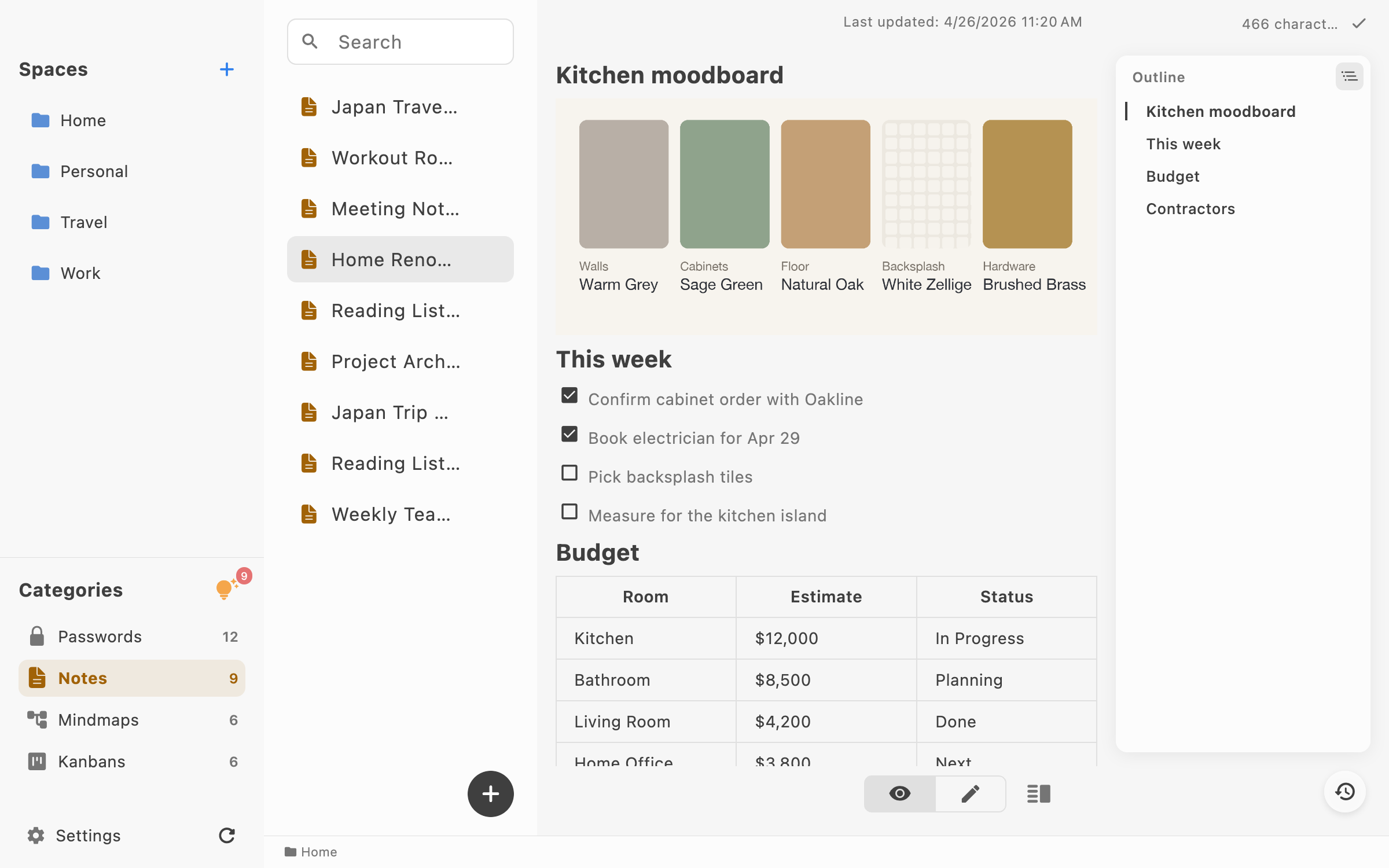
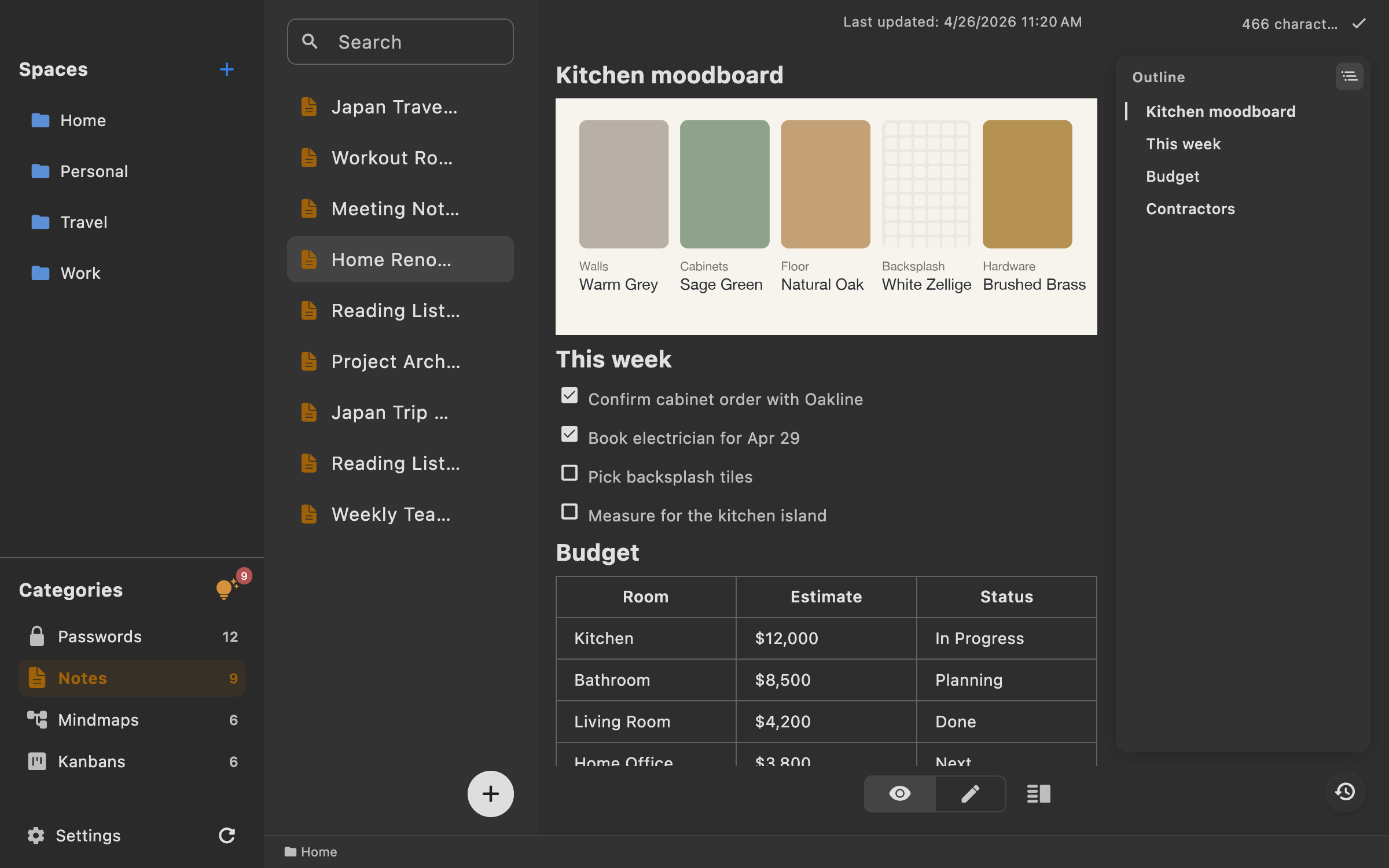
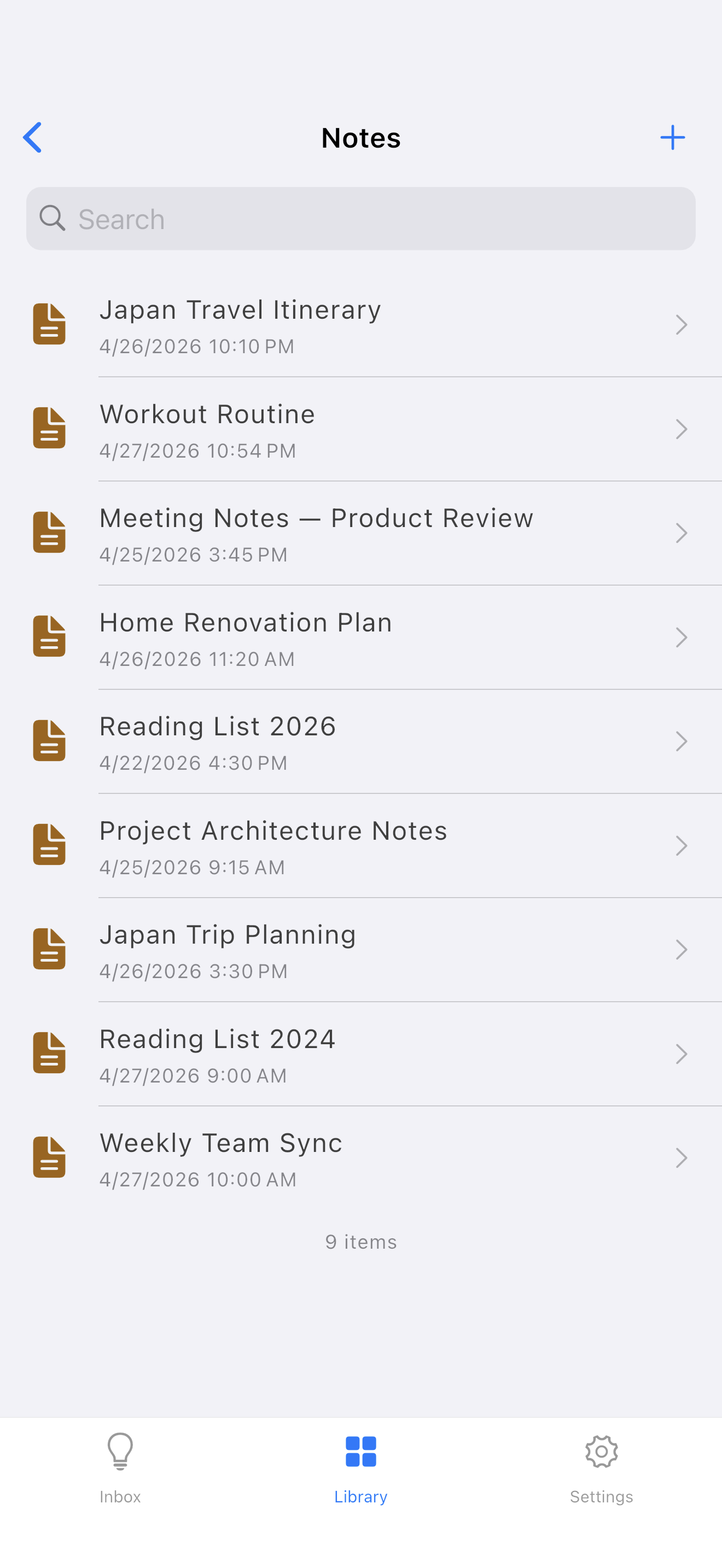
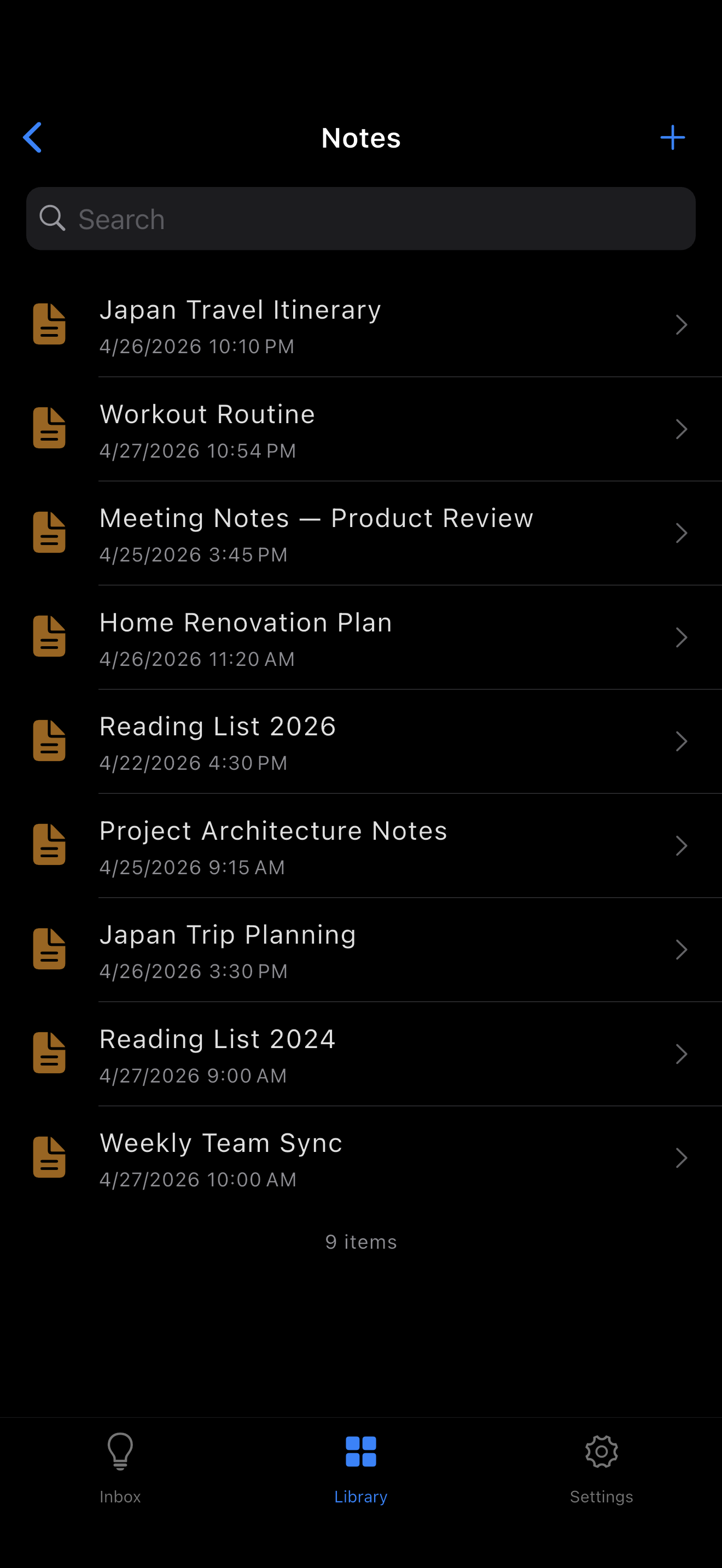
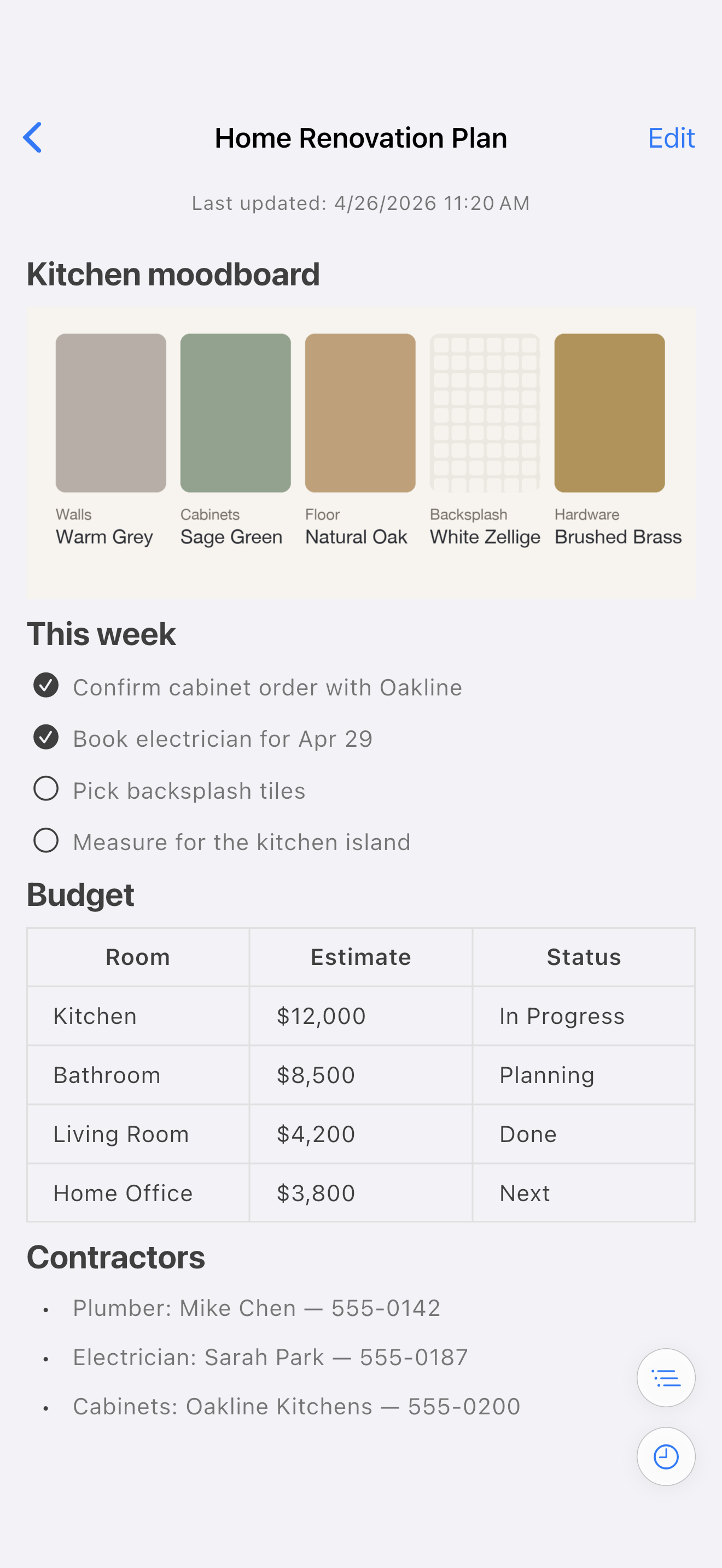
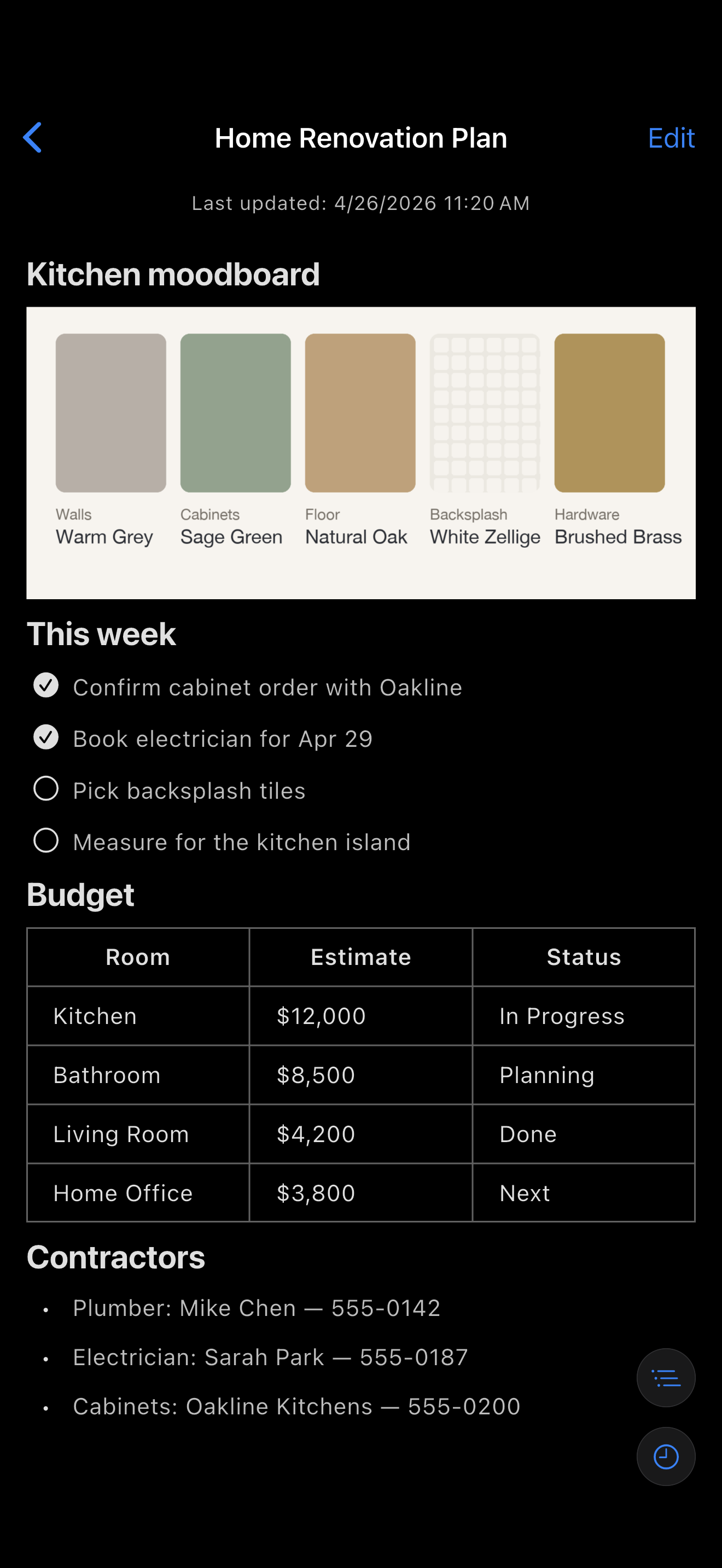
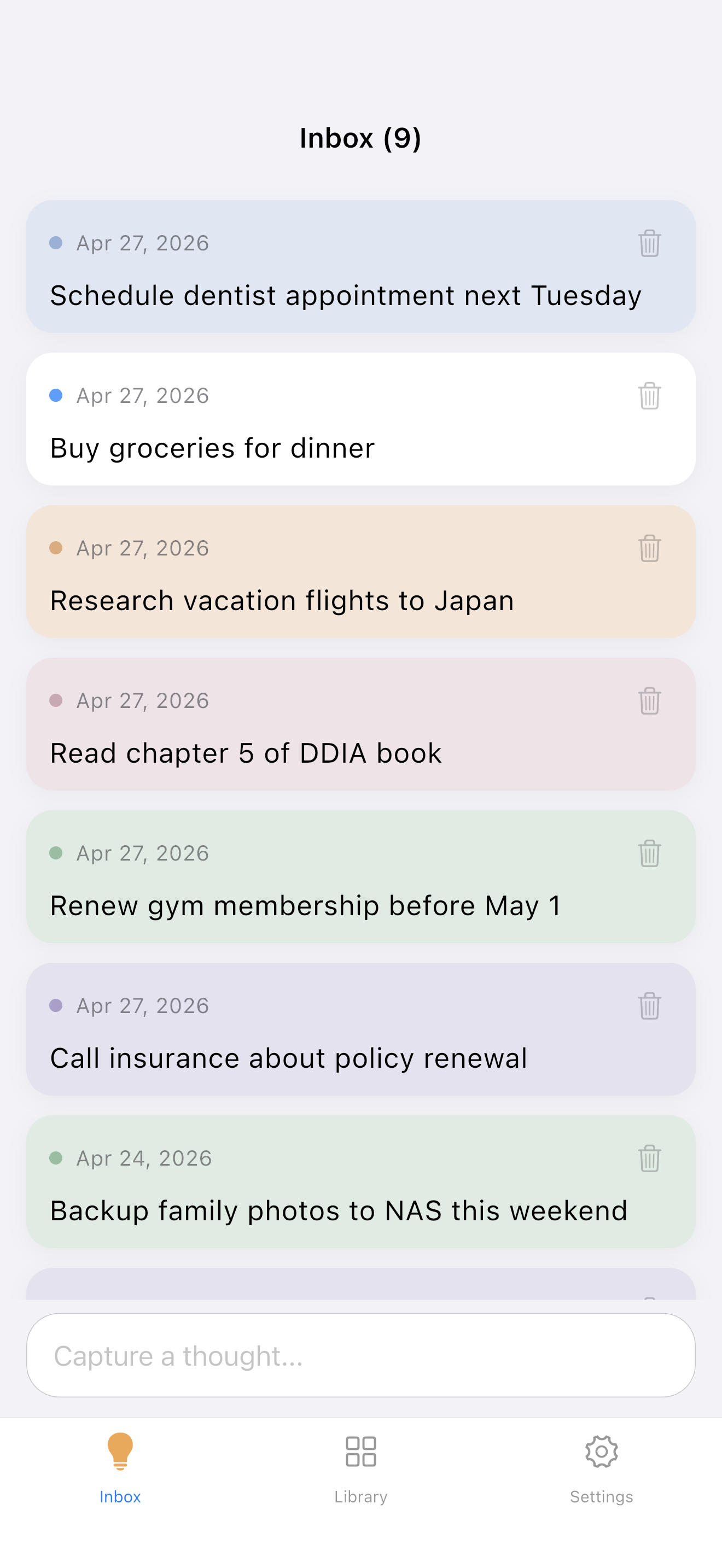
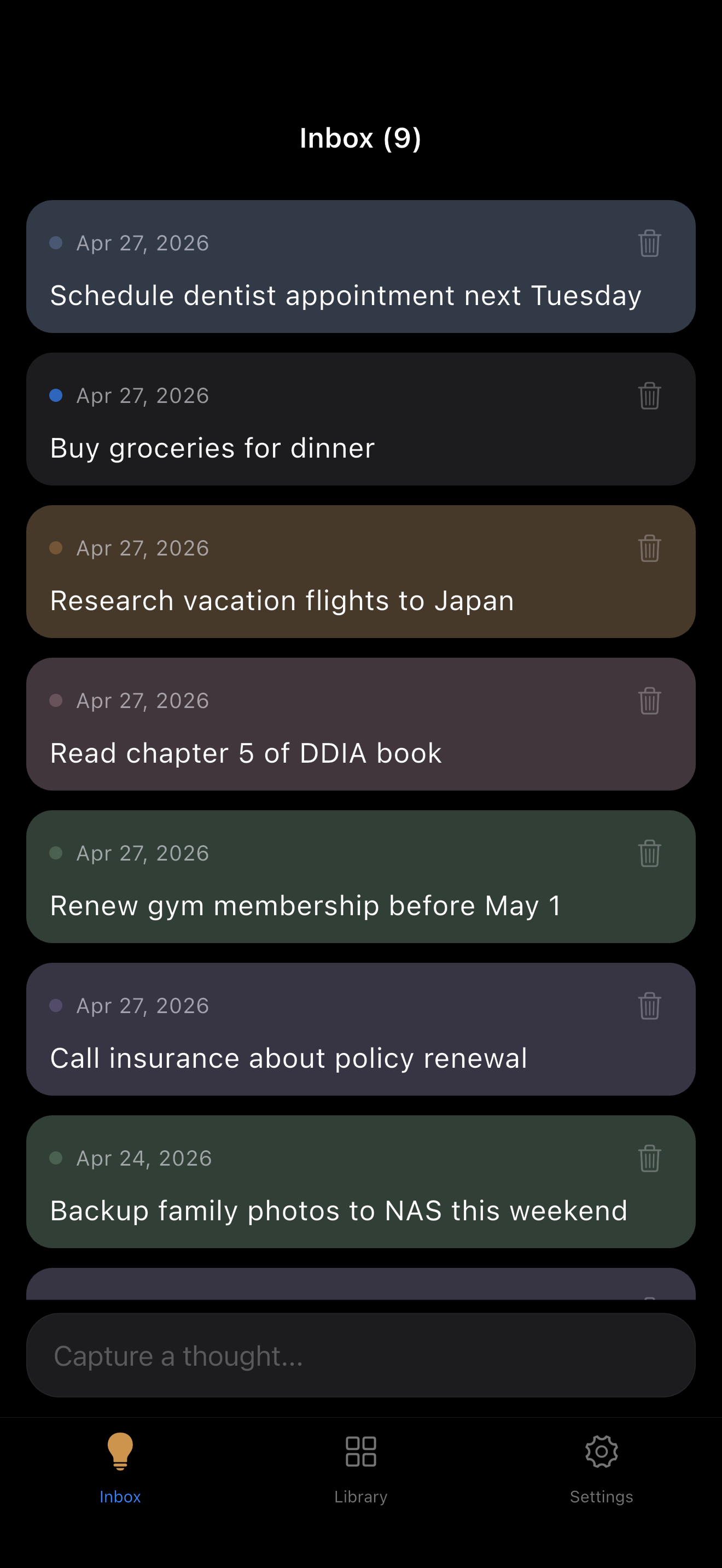
LocArk on macOS and iPhone. Notes shown are demo content.
What “local encrypted notes” means in LocArk
The storage, encryption, network, and recovery boundaries are separate choices. LocArk makes each one visible instead of treating “private” as a single switch.
New vaults are encrypted by default
When you create a new workspace, LocArk asks for a master password and writes new note data in the V2 encrypted format. Existing legacy plaintext vaults remain readable until you manually migrate them to a new V2 encrypted location.
You choose the storage location
The workspace lives under a folder you select. LocArk does not upload private note content to a LocArk-hosted content service.
Core notes work offline
Create, edit, organize, and search the local workspace without depending on a network connection. Store installation and license checks are separate from private content storage.
Backup and export stay available
Back up the complete encrypted workspace folder for recovery, or export a readable archive when you need to inspect or migrate your content.
Verifiable security design
What is encrypted—and where
LocArk uses a layered local encryption design. These details describe the current V2 workspace rather than making a general claim that every device state is safe.
Product behavior reviewed August 28, 2026.
Authenticated file encryption
Supported workspace item records and LocArk-managed attachments are encrypted locally with AES-256-GCM before they are written to a V2 workspace.
Master password and envelope keys
Argon2id derives a key-encryption key from the master password. That key protects a random data-encryption key used for workspace files; when key caching is enabled, the data key may be kept in the operating system's protected credential storage.
No hosted private-content sync
LocArk does not receive or synchronize your private workspace content. If you select a third-party sync folder, encrypted files move through that provider under its own availability and metadata rules.
Encryption protects note contents and V2 attachments, but a storage or sync provider may still observe directory names, file sizes, timestamps, and other filesystem metadata. Avoid putting sensitive information in project or folder names if that metadata matters to your threat model.
A four-step local workflow
Start with a test workspace
Use non-sensitive sample content first so you can verify storage, offline access, backup, and recovery before moving important notes.
1
Choose an empty storage location
Select a local folder or a fully synchronized folder you trust. LocArk checks for an existing or incomplete workspace before creating new data.
2
Create and keep a strong master password
The password protects the workspace encryption key. LocArk cannot reset it for you if no unlocked device remains usable and the protected data key is no longer accessible.
3
Write and test offline
Create a few sample Markdown notes, paste a non-sensitive local image, disconnect the network, and confirm that the workflow you need remains available.
4
Back up the complete workspace
Copy the entire workspace folder to a separate backup location and test recovery. Sync can distribute changes, but it is not a substitute for backup.
Choose it for the right job
Private personal workspace, with explicit limits
Local encryption reduces dependence on a hosted content service. It does not remove the need for device security, password discipline, backups, or conflict-aware syncing.
A good fit when you want
Personal Markdown notes stored in a location you choose
Offline access to a private knowledge workspace
Notes, password entries, boards, and mind maps in one encrypted vault
Your own choice of backup and optional file-sync provider
A readable export path for inspection and migration
It does not replace
Real-time multi-user editing, browser access, or managed team permissions
Device encryption, screen locking, malware protection, or a secure operating system
A separate tested backup or recovery plan
Conflict-free simultaneous editing across several devices
Master-password recovery when no unlocked device or protected data key remains accessible
Encrypted notes FAQ
The short answers to the security and portability questions that matter most.
Are all LocArk workspaces encrypted automatically?
New workspaces are encrypted by default. Older plaintext workspaces remain supported for compatibility and can be migrated manually to a new V2 encrypted storage location.
Does LocArk provide cloud sync?
No hosted LocArk content sync is provided. Where your platform supports the location, you can use an iCloud Drive, Dropbox, or OneDrive folder, or a folder you manage with Git. LocArk does not control those tools; wait for file synchronization to finish before opening the workspace.
What happens if I forget the master password?
LocArk cannot reset the master password. A device with the protected data key already available may remain usable, but if no unlocked device remains usable and the data key is no longer accessible, the encrypted workspace cannot be recovered.
Can I export notes in a readable format?
Yes. The app can export readable content as either a password-protected Encrypted ZIP or a Standard ZIP. Extracted content is readable, so treat the archive as sensitive and remove temporary exports when you are finished.
Is a synchronized folder also a backup?
No. Deletion, corruption, or a conflicting change can also synchronize. Keep a separate copy of the complete workspace and periodically test that it can be opened or restored.
 LocArk