LocArk
Published · LocArk Team · Product · 9 min read
Encrypted Offline Notes: A Practical Storage, Backup, and Recovery Workflow
A practical LocArk workflow that separates encrypted storage, optional folder sync, independent backups, readable exports, and a safe restore test.
Encryption, synchronization, backup, and export solve different problems. An encrypted workspace can protect files at rest, but it does not create another copy. A synced folder can improve availability, but it can also propagate a deletion. A readable export can help you leave an app, but it is not the same as restoring the app’s native workspace.
For a product-level overview of storage, encryption, offline use, and supported boundaries, see LocArk local encrypted notes. This guide focuses on the backup-and-recovery drill.
This guide was reviewed on August 25, 2026 against LocArk’s current implementation and export tests. The drill below uses a temporary workspace and synthetic content so you can evaluate the workflow without exposing real notes or credentials.
The Four Layers Have Different Jobs
| Layer | What it contains | Primary job | Important limit |
|---|---|---|---|
| Working workspace | LocArk’s native encrypted files inside locark_data | Everyday reading, editing, and search | One working copy is still one copy |
| Optional folder sync | The same workspace propagated by iCloud Drive, OneDrive, Dropbox, Git, or another user-chosen tool | Access from another device or location | LocArk does not provide or control the sync service |
| Independent native backup | A separate snapshot or copy of the complete locark_data directory | Restore the LocArk workspace | It must include configuration, items, images, history, and other required entries |
| Readable export | A ZIP containing Markdown and readable text representations, plus supported local images | Inspection, archiving, or migration | It is not a native round-trip copy, and its readable contents need separate protection |
The safest baseline is to keep these roles separate. Use the native encrypted workspace for daily work, an independent backup for recovery, and a readable export only when portability is useful. Add folder sync only when you need it and understand the provider’s behavior.
What LocArk Stores
When you create a new LocArk workspace, you select a parent folder. LocArk creates and uses a locark_data directory inside it. New workspaces use local encryption protected by a master password.
The native workspace contains more than the note files you see in the library. It also includes configuration required to unlock the encrypted workspace, managed local images, history data, and internal entries used by other item types. Copying only individual .locark files is therefore not a complete backup strategy.
LocArk can work from a local folder or a folder exposed by a storage or sync tool you choose. The private workspace is not uploaded to a hosted LocArk content service. If the selected folder is synchronized, availability, retention, version history, download state, and conflict behavior come from that separate system or provider.
A Small Recovery Drill
Run this drill before moving important material. You need:
- the current official LocArk build;
- one empty parent folder for a temporary workspace;
- a second, independent location for the backup copy; and
- a synthetic note and image that contain no private information.
Record the original storage path before changing anything in an existing installation. Do not use the live workspace as test material.
1. Create a Temporary Encrypted Workspace
Choose a new, empty parent folder and create a temporary workspace. LocArk will place locark_data inside that folder. Set a unique test master password and keep it available for the duration of the drill.
Do not reuse a real vault password. The test should prove the process, not create another secret you need to retain.
2. Add Representative Sample Content
Create a note with a heading, checklist, link, and local image. For example:
# Recovery drill

- Created: 2026-08-25
- Workspace: synthetic test only
- Expected result: note, link, and image survive recovery

[LocArk website](https://locark.com)
Add a short phrase you can find with global search, such as violet recovery marker. Paste or reference a non-sensitive image if images are part of your normal notes.
If you depend on other LocArk item types, add synthetic examples of those too. Never put a real password into a recovery test.
3. Confirm the Core Offline Workflow
Disconnect the network, then reopen the sample note, search for the marker, edit the checklist, and confirm that the change is saved. Close and reopen the note once more.
This tests local content access. Store installation and updates, purchases or entitlement activation, support, and any sync provider you selected can still require a network connection.
4. Back Up the Native Workspace
Let any pending write finish and close LocArk before taking the test snapshot. If the working folder is synchronized, also wait until the provider reports that the local files are fully available.
Copy the complete locark_data directory to the independent test-backup location, or include its parent folder in an operating-system backup that preserves the full directory. Make sure the process keeps hidden entries, file names, images, and nested directories. Record when the snapshot was made.
Do not place the only backup inside the live workspace or rely on another path managed by the same continuous sync job. Independence is what protects the copy from a propagated mistake.
5. Inspect a Readable Export
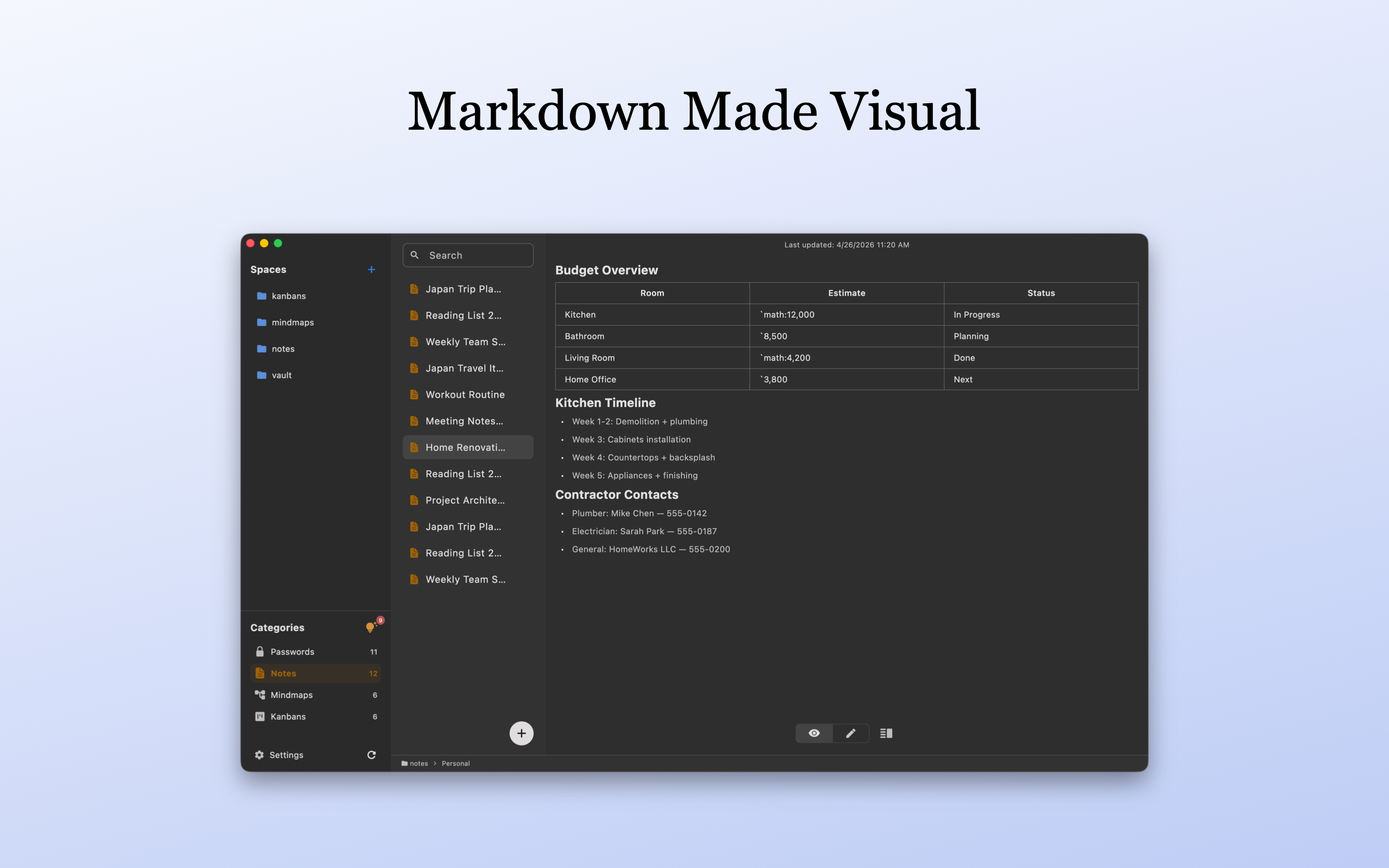
In LocArk settings, choose Export Plain Data and create a Standard ZIP from the synthetic workspace. Open the ZIP and verify that the note is readable and that the expected local image is present and referenced correctly.
LocArk currently offers Standard ZIP and password-protected Encrypted ZIP exports. For a V2 workspace, the current encrypted export reuses the verified workspace master password behind a different, lower-cost archive protection boundary. This guide therefore treats both formats as portability artifacts, not native or long-term recovery copies. A Standard ZIP is plaintext, which is why this drill uses synthetic data. If you export real content, protect the destination, control who can access it, and remove unneeded copies. See the detailed export security boundary.
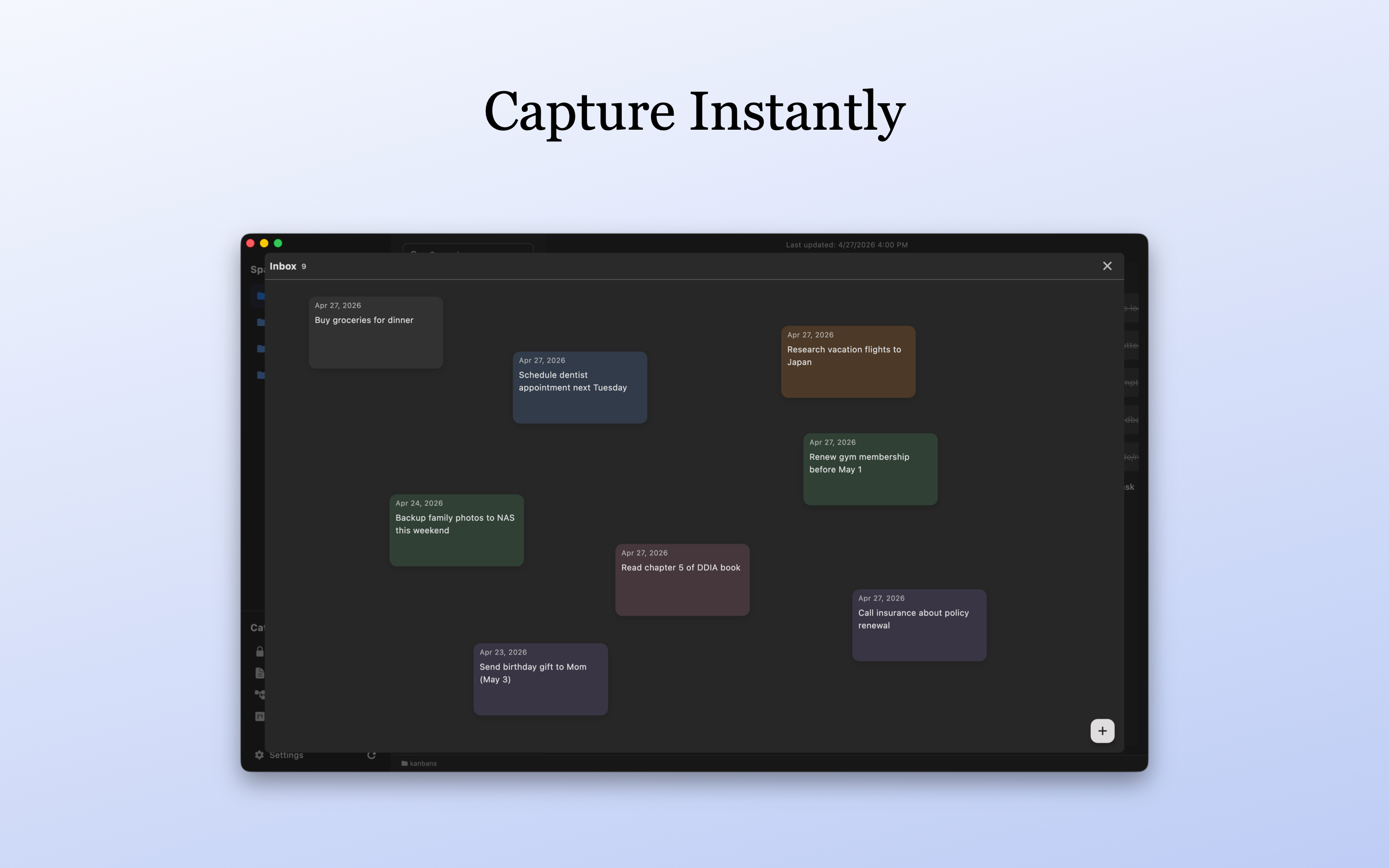
Notes are exported primarily as Markdown. Password entries, kanban boards, mind maps, and Inbox content are converted into readable text structures. That makes an export useful for inspection or migration, but it does not guarantee that every app-specific behavior can be imported back unchanged.
6. Restore Into a Separate Test Location
Never test by overwriting the working folder.
- Create a different empty parent folder.
- Copy the backed-up
locark_datadirectory into that parent folder. - In LocArk, select the restored parent folder as the storage location. Select the folder containing
locark_data, notlocark_dataitself. - Unlock the restored test workspace with its test master password.
- Find the marker, open the note and image, and confirm that the final offline edit is present.
- After the result is recorded, switch LocArk back to the original storage parent if necessary.
Changing LocArk’s storage location only changes which folder the app uses. It does not move, merge, copy, or delete data in the previous folder. Keep the original and restored paths visibly distinct throughout the drill.
How to Judge the Result
Use a short evidence table instead of relying on memory:
| Check | Pass condition |
|---|---|
| Offline access | The sample note opens, edits, saves, and appears in search without a network |
| Native backup completeness | The backup contains the complete locark_data directory and required hidden data |
| Readable export | Expected Markdown, text representations, and supported images can be inspected |
| Separate restore | The copied workspace unlocks from another parent folder without overwriting source |
| Content verification | The marker, final edit, link, and image match the working copy |
Mark each row pass, needs review, or blocker. Do not move sensitive material until every required row passes.
Why Sync Is Not a Backup
A sync tool and a backup tool may both create additional copies, but they are optimized for different outcomes.
Sync tries to make current state available elsewhere. That can include current mistakes. Depending on the provider and configuration:
- an accidental deletion may propagate to every device;
- a damaged file or conflict copy may also propagate;
- files may be visible remotely but not downloaded locally yet;
- provider version history may be limited or expire; and
- account, permission, or subscription changes may affect access.
Use sync for availability. Use an independent, recoverable snapshot for recovery. If you put a LocArk workspace in a synced folder, start on one device, wait for the initial sync to finish, and test another device with non-sensitive data before depending on it.
LocArk does not promise real-time, conflict-free collaboration or automatic merging of simultaneous edits. Avoid editing the same workspace on several devices at once until you understand the behavior of your chosen storage layer.
What Local Encryption Does and Does Not Cover
Local encryption is valuable, but the boundary matters.
Local encryption helps protect supported workspace item contents and managed attachments at rest when an unauthorized person obtains a copy but does not have the master password. It does not hide the selected storage location, directory structure, file names, or all configuration and file-system metadata. It also does not by itself protect:
- an unlocked LocArk session;
- a device account that an attacker already controls;
- malware, screen capture, clipboard access, or physical observation;
- plaintext readable exports;
- access to backup or sync accounts, plus metadata those tools expose; or
- a forgotten master password when no already-unlocked device remains available.
Use operating-system account security and full-disk encryption as complementary controls. Protect each backup destination according to the sensitivity of the material it holds, and keep the master password somewhere you can recover without storing it beside the only copy of the workspace.
Choose a Restore Frequency Based on Risk
There is no useful universal rule such as “restore every 30 days.” Choose a routine based on how often the workspace changes and how costly recovery failure would be.
At minimum, repeat a small restore test:
- after changing the storage or backup tool;
- after a major operating-system, provider, or workflow change;
- after moving to another device; and
- periodically for a workspace whose contents would be difficult to recreate.
CISA’s StopRansomware Guide recommends maintaining offline, encrypted backups of critical data and regularly testing their availability and integrity. The exact tool is less important than proving that your own copy can be restored.
When This Workflow Fits
This workflow is a good fit for individuals who want:
- encrypted offline notes and other private workspace items;
- a storage location they choose;
- optional use of an existing folder-sync provider;
- a native recovery copy; and
- readable Markdown-oriented exports for portability.
It is a weaker fit when the primary requirement is real-time team editing, hosted browser access from unmanaged devices, enterprise administration, or automatic conflict merging.
The local-first software paper describes offline work, longevity, privacy, and user control as related goals. A practical setup turns those goals into separate, testable storage and recovery layers.
Next Steps
- Download LocArk from the current official store channel for your platform.
- Set up a private local-first workspace with a small structure and user-chosen storage.
- Plan a supported cloud-to-local migration without removing your rollback path too early.
- Review the local-first privacy checklist before moving sensitive content.
The goal is not to collect more copies. It is to know which copy you work from, which copy can recover the workspace, which copy is synchronized, and which export remains readable outside the app.